Plugin Overview
The Ray Tracing Controller plugin provides in-game control of hardware ray tracing settings directly through Blueprints, allowing dynamic adjustments during runtime.
Installation
Option 1: Marketplace
- Purchase the plugin from the Unreal Engine Marketplace .
- Open the Epic Games Launcher and navigate to the Unreal Engine tab.
- Click on the Library panel and find the Ray Tracing Controller plugin.
- Click the Install button to add it to your engine installation.
- Launch your project and enable the plugin from Edit → Plugins menu.
Option 2: Manual Installation
- Download the plugin package from the provided link after purchase.
- Unzip the package to your project's Plugins folder (create one if it doesn't exist).
- The final path should look like: YourProject/Plugins/RayTracingController/
- Launch your project and enable the plugin from Edit → Plugins menu.
Using the Plugin
The plugin exposes a suite of Blueprint nodes to toggle specific rendering features.
Available Blueprint Nodes:
- Set Ray Tracing Enabled – Controls global hardware ray tracing support (r.RayTracing).
- Set Ray Tracing Shadows Enabled – Enables or disables ray-traced shadows (r.RayTracing.Shadows).
- Set Lumen Hardware Ray Tracing Enabled – Manages Lumen's hardware ray tracing usage (r.Lumen.HardwareRayTracing).
- Set Path Tracing Enabled – Enables or disables path tracing (r.PathTracing).
📘 Blueprint Query Nodes — "Is Ray Tracing Feature Enabled"
These getter nodes allow you to query the current persistent configuration of key hardware ray tracing settings.
Unlike runtime console variables (which only affect the current session), these nodes read from the project's persisted configuration file (DefaultEngine.ini) — ensuring that your UI and logic reflect what will be active the next time the engine or game starts.
-
🔹 Is Ray Tracing Enabled
Returns:
Trueifr.RayTracing=Trueis set inDefaultEngine.ini.Use Case: Check whether global ray tracing is currently enabled and will be active after the next restart.
-
🔹 Is Ray Tracing Shadows Enabled
Returns:
Trueif ray-traced shadows are enabled viar.RayTracing.Shadows=True.Use Case: Useful for enabling UI toggles or adjusting shadow settings in menus dynamically.
-
🔹 Is Lumen Hardware Ray Tracing Enabled
Returns:
Trueif Lumen is configured to use hardware ray tracing (r.Lumen.HardwareRayTracing=True).Use Case: Helps you adjust UI or post-processing settings based on the Lumen mode.
-
🔹 Is Path Tracing Enabled
Returns:
Trueif path tracing is currently set to be used (r.PathTracing=True).Use Case: Can be used to display a warning or optimize content preview logic.
🧠 Notes
- These nodes read from the config file, not the currently running render state.
- For runtime detection (e.g., whether RT is active now), you'd need to use C++ rendering APIs or console variables — this plugin focuses on persistent configuration.
- Ideal for building settings menus, runtime analytics, and validating feature toggles before restart.
Implementation Example:
1. Open your game settings Blueprint (or create a new one)
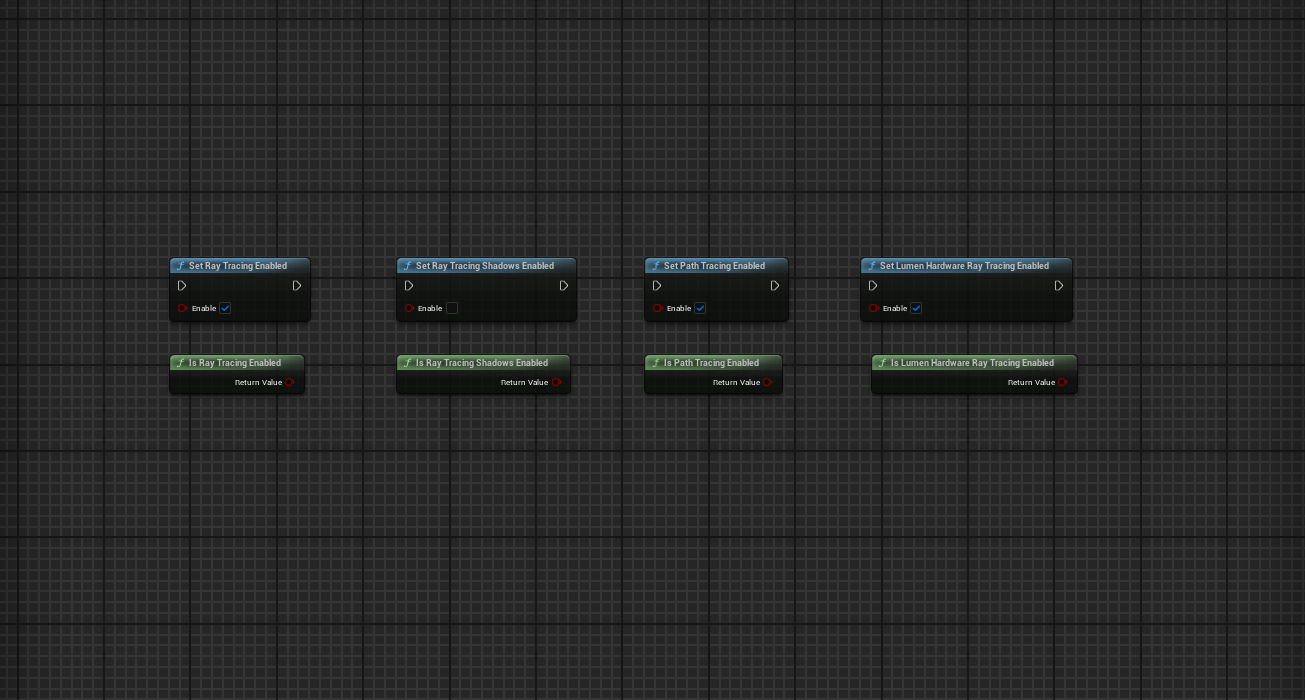
2. Drag out from a Boolean variable or UI element and search for the Ray Tracing nodes
3. Connect your logic to the node inputs
Important Notes
Configuration Changes: Changes are automatically written to the appropriate configuration file:
- Saved/Config/WindowsEditor/Engine.ini when running in the Unreal Editor.
- Saved/Config/Windows/Engine.ini when running in a packaged (final) build.
Persistence: This is not equivalent to executing runtime console commands (e.g., r.RayTracing), which only apply temporarily for the current session. Instead, the plugin writes directly to the configuration file, ensuring that changes are persistent. Once a setting is enabled or disabled, it remains in effect across future launches of the game or editor until explicitly changed again.
Important: A restart of the engine is required for modified settings to be applied. This allows developers to build advanced graphics settings menus, enable runtime diagnostics, or switch rendering modes in a way that fully integrates with Unreal Engine's configuration system.
Technical Details
Features
- Set Ray Tracing Enabled
- Set Ray Tracing Shadows Enabled
- Set Lumen Hardware Ray Tracing Enabled
- Set Path Tracing Enabled
- Persistent Configuration Writes
- Editor & Runtime Support
- Blueprint Getter Nodes (Is Ray Tracing Enabled, etc.)
Key Blueprint Nodes
✅ Setter Nodes (Persistent Configuration)
- Set Ray Tracing Enabled – Controls global hardware ray tracing support (r.RayTracing).
Automatically enables r.SkinCache.CompileShaders as required.
- Set Ray Tracing Shadows Enabled – Enables or disables ray-traced shadows (r.RayTracing.Shadows).
- Set Lumen Hardware Ray Tracing Enabled – Toggles whether Lumen uses hardware acceleration (r.Lumen.HardwareRayTracing).
- Set Path Tracing Enabled – Enables or disables Unreal's path tracer (r.PathTracing).
🔍 Getter Nodes (Query Current State)
- Is Ray Tracing Enabled
- Is Ray Tracing Shadows Enabled
- Is Lumen Hardware Ray Tracing Enabled
- Is Path Tracing Enabled
These return True or False based on the values written to Engine.ini, allowing you to branch Blueprint logic or update UI elements to reflect the current configuration.
Note: These getters query the saved config values, not whether the engine is currently using ray tracing. Think of them like a settings inspector, not a rendering debugger.
Where Are Settings Saved?
Settings are written directly to your project's persistent config files:
- Saved/Config/WindowsEditor/Engine.ini – when run inside the Unreal Editor
- Saved/Config/Windows/Engine.ini – when run in a packaged build
This allows full persistence across sessions, launches, and packaged builds! (no temporary runtime-only console commands are used)
Code Modules
RayTracingControl(Provides Blueprint-callable interface for INI-based rendering config control)
Number of Blueprints
- 0 (All logic is exposed as static Blueprint nodes through a BlueprintFunctionLibrary)
Benefits
- 🧩 100% Blueprint-exposed – no C++ setup needed
- 📝 Persistent configuration system integration
- 🧠 Works in editor and packaged builds (Win64)
- 🔁 No reliance on temporary runtime commands
- 🎯 UE5.0 to UE5.5 compatibility
C++ Classes
URayTracingConfigLibrary
Blueprint Function Library that exposes ray tracing configuration functionality.
Network Replication
❌ No — INI changes are local to the client or game instance and require restart to apply
Documentation
Supported Development Platforms
- Windows ✅
- macOS ❌
Supported Target Build Platforms
- Windows (Win64) ✅
Engine Compatibility
Compatible with Unreal Engine Versions:
Important: A restart of the engine or game is required for settings to take effect. This is not equivalent to executing runtime console commands (e.g., r.RayTracing), which only apply temporarily for the current session.
Last Update: April 18, 2025
Distribution Method: Plugin
Need Help?
If you have any questions or need assistance with the plugin, feel free to reach out.
Contact Support